











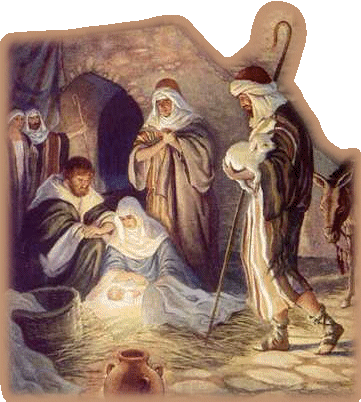
It would be easy enough to imagine Christmas as a simple continuum of tradition dating from the birth of Christ. You'd begin with the nativity story, apply the December 25th date to Jesus' birth, establish the gift-giving precedent of the magi and work from there. Over the centuries, classic Christmas traditions would accumulate: perhaps beginning with the yule log, followed by the Christmas tree and finally winding up in the present day with giant inflatable snowmen and icicle lights.
 The history of Christmas, however, is hardly a continuum. It is a varied and riotous story. The middle of winter has long been a time of celebration around the world. Centuries before the arrival of the man called Jesus, early Europeans celebrated light and birth in the darkest days of winter. Early Europeans marked the year's longest night -- the Winter Solstice -- as the beginning of longer days and the rebirth of the sun. They slaughtered livestock that could not be kept through the winter and feasted from late December through January. Many peoples rejoiced during the winter solstice, when the worst of the winter was behind them and they could look forward to longer days and extended hours of sunlight.
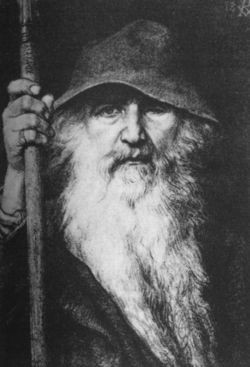
German pagans honored Oden, a frightening god who flew over settlements at night, blessing some people and cursing others.
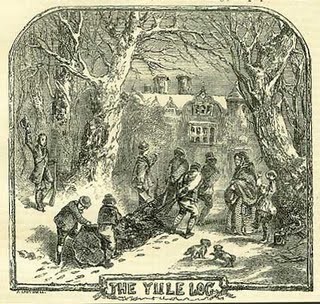 Yule or Yule-tide is a winter festival that was initially celebrated by the historical Germanic peoples as a pagan religious festival. The Norse in Scandinavia celebrated yuletide, and each family burned a giant log and feasted until it turned to ash. The festival was originally celebrated from December 21st through January. It was later absorbed into, and equated with, the Christian festival of Christmas. The festival was placed on December 25th when the Christian (Julian) calendar was adopted. Some historians claim that the celebration is connected to the Wild Hunt or was influenced by Saturnalia, the Roman winter festival.
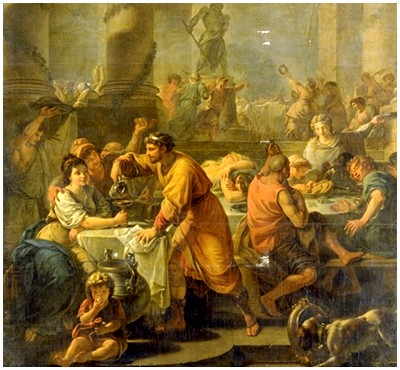
In Rome, people celebrated the raucous festival of Saturnalia from Dec. 17 to Dec. 24 in honor of Saturn, the god of agriculture. The celebration consisted of a carnival-like period of feasting, carousing, gambling, gift-giving and upended social positions. Slaves could don their masters' clothes and refuse orders and children had command over adults. Two other Roman festivals, Juvenalia, a feast in honor of Rome's children, and Mithras, a celebration in honor of the infant god Mithra, also fell near the solstice.
In the early Christian Church, the birth of Christ was not celebrated. During the first three hundred years of the religion the Church in Rome discouraged such a celebration, concerned that it would appear to be more like a Pagan ritual, than a Christian holiday. As church officials attempted to convert Romans to Christianity, Pope Julius I chose December 25th as the date that the birth of Christ would be celebrated with the hope that the choice of that date would be more easily accepted by the Romans.
The prevailing theme in all of the celebrations was the welcoming of the sun and the joy in the rebirth of the world. The Pagans viewed these celebrations of the return of the sun, as the fact that good will prevail over evil and the sun will return to the earth, which makes it easy to see how it could be adapted to the Christian beliefs that Jesus was born to save the world. Jesus Christ has been often referred to as the "Light of the World" and it only seems fitting that the winter solstice when the sun appeared to return to the waiting world, that His birth was celebrated on that day. There has been quite a bit of controversy on the exact time that Jesus was born. Some believe that it was in March, others in September, but the choice of December 25th demonstrates a desire by early Christians to associate the day with a day honored by many as the day that the light was brought to the world. Since Jesus is often considered, "The Light of the World", this appears to be an appropriate day to choose for the celebration of His birth.

But by the late 18th century and throughout the 19th century, Christmas began to take on the tame associations it has today. New Yorker Washington Irving wrote popular stories about Christmas that invented and appropriated old traditions, presenting them as the customs of the English gentry. Queen Victoria's German husband, Prince Albert, introduced a Christmas tree to Windsor Castle in 1846. An engraving of the couple with their children in front of the tree popularized the custom throughout England and the United States.














.gif)



 On the sixth day of Christmas,
  On the seventh day of Christmas,
  On the eighth day of Christmas,
 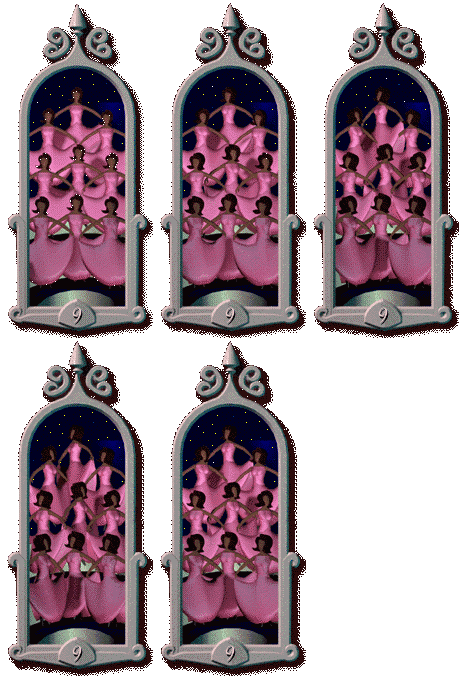 On the ninth day of Christmas,
 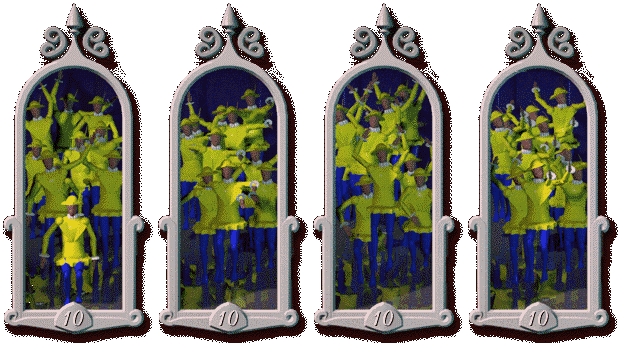 On the tenth day of Christmas,
 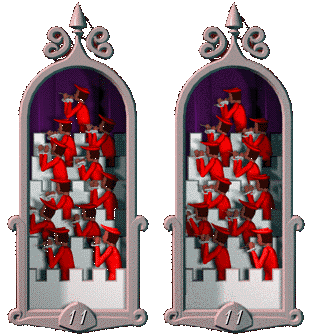 On the eleventh day of Christmas,
  On the twelfth day of Christmas,
 .gif)








.gif)
.gif)

